
How to Show Photos and Videos on Your TV
Turn your TV into a photo and video slideshow using Chromecast, Google TV, AirPlay, or DLNA, with practical advice for setup, privacy, sound, and pacing.
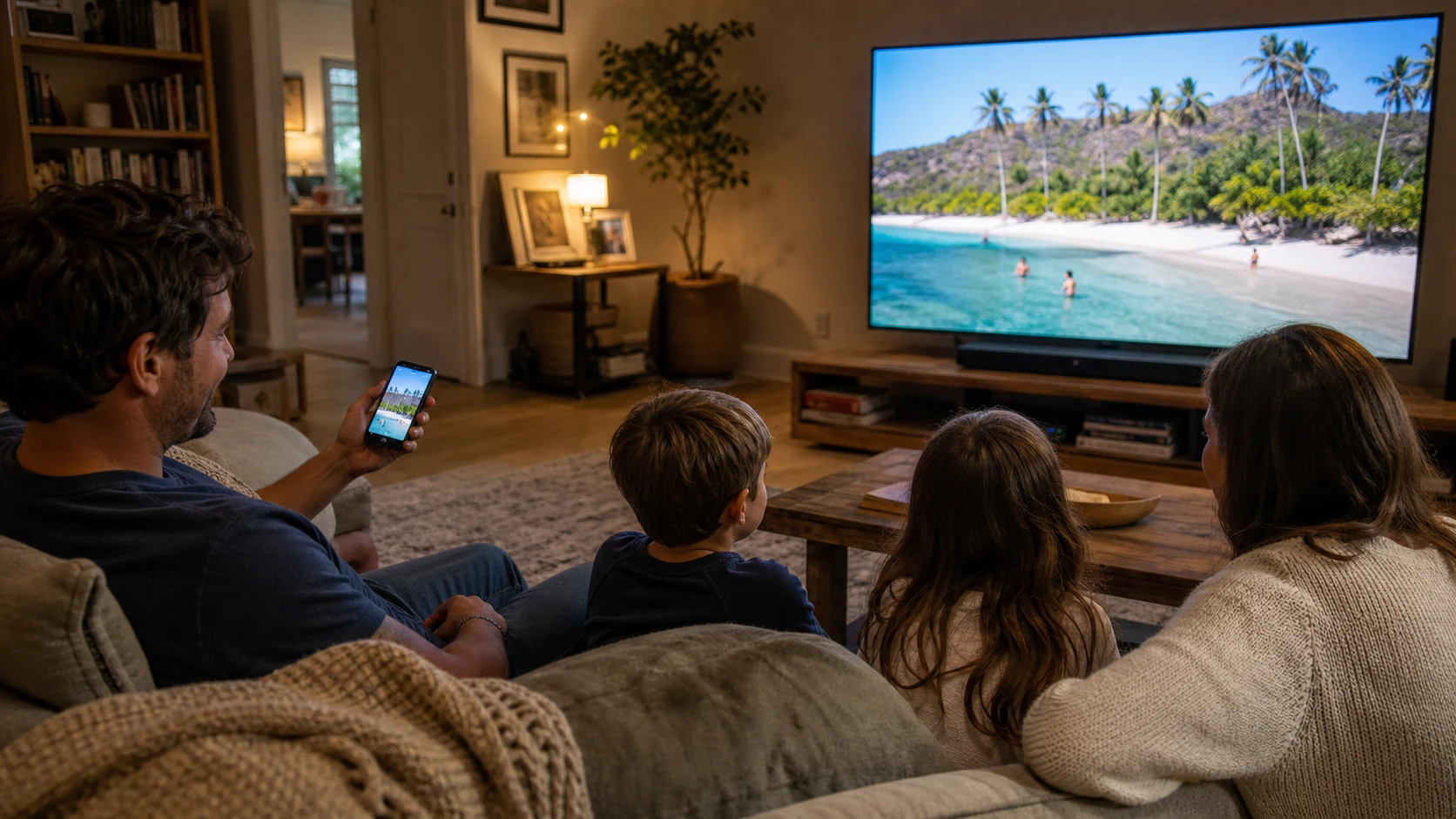
You can show photos and videos on a TV by casting a slideshow from a phone or tablet over Chromecast, Google TV, AirPlay, or DLNA. The controller and TV usually need to be on the same Wi-Fi network, and the TV must support the casting method you choose.
The technical connection is only half the job. A good TV photo slideshow also needs a focused album, comfortable pacing, sensible sound, and media that is appropriate for everyone in the room.
#What is the easiest way to display photos on a TV?
Start by checking what the TV already supports.
- Chromecast or Google TV: Common on Google streaming devices and many smart TVs.
- AirPlay: Available through Apple TV and AirPlay-compatible smart TVs.
- DLNA or UPnP: Supported by many Samsung, LG, Sony, and other network-connected TVs.
- Direct TV photo app: Some TVs offer their own gallery or ambient mode.
- HDMI: A dependable wired fallback from a compatible phone, tablet, or computer.
For a shared family album that changes over time, casting from a media-frame app can be easier than repeatedly moving files to a USB drive.
#How do you cast a photo slideshow to a smart TV?
The exact buttons vary by app, but the usual process is:
- Connect the controller device and TV to the same Wi-Fi network.
- Open the album or slideshow on the phone or tablet.
- Tap the Cast or AirPlay control.
- Choose the TV from the available devices.
- Start playback and keep the controller available for pause, skip, and volume.
In LumiFrame, TV casting is available on Premium and Elite plans. It supports Chromecast and Google TV, AirPlay-compatible displays, and DLNA or UPnP renderers. Device capability and local-network conditions still affect what appears in the discovery list.
#Can a TV show both photos and videos?
Yes, if the casting app and TV support the media formats involved.
Photos are relatively predictable. Videos add questions about codec support, buffering, sound, orientation, and length. Test several real clips before a gathering, especially videos recorded on different phones.
Use a stable Wi-Fi connection for video. If playback buffers, move closer to the router, use a less congested network, or reduce the number of very large clips in the slideshow.
#How long should each photo stay on screen?
For a background slideshow during dinner or a party, five to ten seconds per photo is usually calm enough to notice without making the room wait. A narrated vacation slideshow may move faster through ordinary scenes and pause longer on group photos or landmarks.
Match the timing to the setting:
- Ambient household display: Slower, relaxed pacing
- Family dinner: Enough time for conversation to react
- Event slideshow: Shorter intervals with frequent new arrivals
- Guided story: Manual control so someone can pause and explain
Avoid dramatic transitions between every image. On a large TV, simple movement usually feels more intentional.
#What should you do with portrait photos on a widescreen TV?
Portrait photos will not naturally fill a landscape television. Cropping can remove faces or important context, while stretching damages the image.
Use a fit-to-screen presentation that preserves the whole photo, even if that introduces borders or a designed background. Save full-screen cropping for media you have checked individually.
Mixing landscape and portrait images is normal in a family album. The display should respect the memory rather than force every capture into the TV's shape.
#How should video sound work in a TV slideshow?
Decide whether sound is part of the experience before playback begins.
For an ambient frame, unexpected audio can interrupt the room. Muted video or controlled volume is usually better. For a family gathering, hearing a child's laugh or a wedding toast can be the reason to include video at all.
Test the TV volume, the casting device volume, and the app's mute setting. Some DLNA devices handle audio differently, so do not discover the limitation during the event.
#How do you protect privacy when displaying family photos on TV?
A living-room screen is visible to more people than a phone. Create a dedicated TV album instead of casting the entire camera roll.
Before starting, remove:
- Screenshots containing private information
- Medical, financial, or school documents
- Photos someone asked not to share
- Images inappropriate for children or guests
- Embarrassing duplicates and accidental captures
Also stop message previews and personal notifications from appearing over the slideshow. Casting media is different from mirroring the entire phone screen, so prefer a dedicated cast session when available.
#When does a TV work better than a tablet frame?
A TV is ideal when people are already gathered in one room. It makes vacation photos, birthday memories, and event uploads visible without passing a phone around.
A tablet is better for a quiet, always-available display on a shelf or counter. Many households benefit from both: a tablet for everyday ambient viewing and the TV for larger shared moments.
#Frequently asked questions
#Can I use my smart TV as a digital photo frame?
Yes. You can cast a slideshow or use a compatible TV gallery feature. A TV works especially well for evening viewing and gatherings, though it may use more energy and dominate the room more than a small frame.
#Do I need Chromecast to show photos on a TV?
No. AirPlay, DLNA, a TV's built-in gallery, or an HDMI connection can also work. Use the method supported by both your controller device and television.
#Why is my TV not appearing in the cast list?
Confirm that both devices are on the same Wi-Fi network, the TV's casting or media-renderer feature is enabled, and a VPN or firewall is not blocking local discovery. Restarting the TV can also refresh discovery.
#Can family members add new photos while the slideshow is playing?
In a shared LumiFrame album, invited contributors can add memories from their own devices. During an Album Event, guest uploads can also enter the event album while the live slideshow is running.
LumiFrame casting turns a supported TV into a large shared memory display while playback controls stay on your phone or tablet. Choose the album carefully, test real videos, and let the room enjoy the story together.